
Use this:
Setting up a professional email address shouldn’t mean paying for Google Workspace or managing a separate inbox. This guide walks through how to connect a domain email to Gmail using cPanel and SMTP — so you get a professional address without leaving the tools you already use.
Problem
Most small business owners and freelancers start out using a personal Gmail address. It works fine until it doesn’t. The moment you’re sending proposals, following up with clients, or introducing yourself professionally, a @gmail.com address undermines the impression you’re trying to make.
The fix exists — but the setup process involves cPanel, SMTP configuration, and Gmail settings that aren’t well documented in one place.
Approach
I approached this as a documentation problem: the technical steps exist, but they’re scattered, inconsistently explained, and assume prior knowledge most people don’t have.
- Mapped the full process end to end before writing a single step
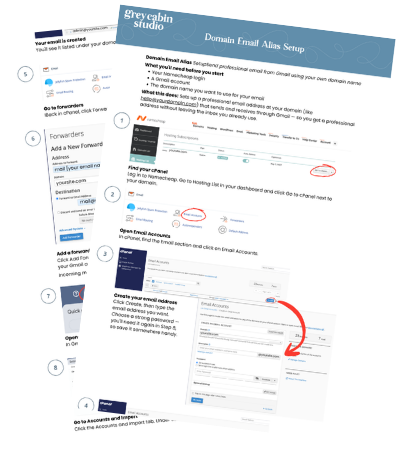
- Used real screenshots from a live Namecheap setup to ground each step visually
- Wrote instructions for the person doing it, not the person who already knows how
- Added a “Where People Get Stuck” section to address the failure points that aren’t in the official documentation
Solution
A 13-step visual guide that takes someone from cPanel to a working Gmail alias — including forwarder setup, SMTP configuration, and verification. Designed to be followed once without needing to Google anything along the way.
What You’ll Need
- A domain email address (e.g. hello@yourbusiness.com)
- Access to your hosting control panel (cPanel or equivalent)
- A Gmail account
- SMTP credentials from your hosting provider
Step-by-Step Setup
Outcome
A reusable guide that any small business owner or freelancer can follow to set up professional email without technical support or a monthly Workspace subscription.
Where People Get Stuck
- Gmail authentication errors when adding the SMTP account
- Using the wrong port — 465 with SSL is the reliable choice
- Confusing POP and SMTP — these do different jobs
- Replies sending from the wrong address after setup
- Verification email landing in the Updates or Spam tab, not Primary
- SPF and DKIM records not configured, causing emails to land in junk
Optional Improvements
- Set up SPF and DKIM records for better deliverability
- Create a professional email signature
- Add multiple aliases for different purposes
- Set up a shared inbox for team use